What Is B1G Player? Features, Setup and Device Support
Streaming has changed the way people watch TV. Instead of relying only on cable, viewers now use apps to watch shows on many devices. B1G Player is an IPTV app that helps you browse live TV, movies, and series when you have valid service details from a content provider.
Before you install any IPTV app, it helps to know how it works. You can also read about the B1G IPTV Player app and its latest version for Android and Firestick to see the installation options. This guide covers features, setup, device support, and the link between the app and a subscription.
What Is B1G Player?
B1G Player is an IPTV streaming app. It gives you one screen to browse TV channels and on-demand videos. IPTV means Internet Protocol Television, which sends TV content through the internet instead of cable or satellite.
An IPTV player does not include channels by itself. It works with login details or a playlist from a content provider. As a result, you need a supported subscription or content source before you can watch anything.
Depending on the service, the app may show:
- Live TV channels
- Movies and on-demand videos
- TV series and episodes
- A program guide (EPG)
- Favorite channels and categories
- Playback and navigation controls
In addition, the clear layout saves time. You can browse by category instead of searching for each channel.
How Does B1G Player Work?
B1G Player connects your streaming device to a content source. The app provides the screen and controls. The provider supplies the channels and videos through an authorized subscription.
Therefore, installing the app does not unlock any channels. You still need access from a provider.
Here are the general steps:
- Install the app: Download a version that fits your device from a trusted source.
- Get your details: Ask your provider for the login details or playlist.
- Set up the app: Enter the details in the app.
- Load the content: Wait while the app reads the information.
- Browse categories: Open live TV, movies, or series, where available.
- Start watching: Pick a title and press play.
Keep in mind that steps can differ by device, app version, and provider.
Key Features of B1G Player
A good streaming app needs easy navigation, steady playback, and wide device support. B1G Player offers several features for this purpose.
1. Live TV Access
Live TV is a core part of IPTV. With a compatible source, you can open the channel list and pick a program.
For example, categories may include news, entertainment, sports, and documentaries. However, the channel list depends on your provider.
2. Video-on-Demand Content
Video-on-demand (VOD) lets you choose a movie or show and watch it at any time. You do not need to follow a TV schedule.
Moreover, genre categories help you find titles faster.
3. Electronic Program Guide
An Electronic Program Guide (EPG) shows what is on now and what comes next. Depending on your source, it may display:
- Program titles
- Current shows
- Upcoming schedules
- Channel details
- Short descriptions
Note that EPG accuracy depends on the data your provider sends.
4. Easy-to-Use Interface
A simple layout helps you move between sections with fewer steps. This matters most on a TV, where you use a remote instead of a touchscreen.
5. Favorites and Content Organization
Long channel lists can be hard to scroll. Therefore, a favorites list lets you save the channels you watch most. You can open them quickly without searching each time. Availability depends on the app version.
Which Devices Support B1G Player?
Device support matters because people watch at home and on the go. The B1G IPTV website lists these device types:
- Amazon Firestick and Fire TV: Good for watching on a big screen.
- Android phones: Useful for mobile viewing.
- Android TV: Built for living room use.
- iOS devices: Works with supported Apple devices.
- Windows computers: Lets you stream on a PC.
- Mac computers: Supports desktop streaming.
- MAG and Enigma2 devices: Adds options for supported IPTV boxes.
However, support does not mean every version installs the same way. Check the device requirements and app availability before you download.
How to Install and Set Up B1G Player
Each device has its own steps. Still, most IPTV apps follow a similar setup flow.
Installing on Amazon Firestick
Firestick is a popular choice for TV streaming. Follow these general steps:
- Connect your Firestick to your TV.
- Check that your internet connection is stable.
- Open the app store or another approved installation method.
- Search for the B1G Player app.
- Download and install it if it is available for your device.
- Open the app.
- Enter your provider’s login details.
- Wait for the content to load.
If the app needs sideloading, check the source first. Also verify the install file before you continue.
Installing on Android Devices
Android phones and tablets offer a quick way to use IPTV apps. The general steps are:
- Open Google Play Store or the official download page.
- Find the right app version.
- Review its requirements and permissions.
- Download the file from a trusted source.
- Finish the installation.
- Open the app.
- Enter your connection details.
Additionally, avoid modified or unknown APK files. They may carry unwanted software.
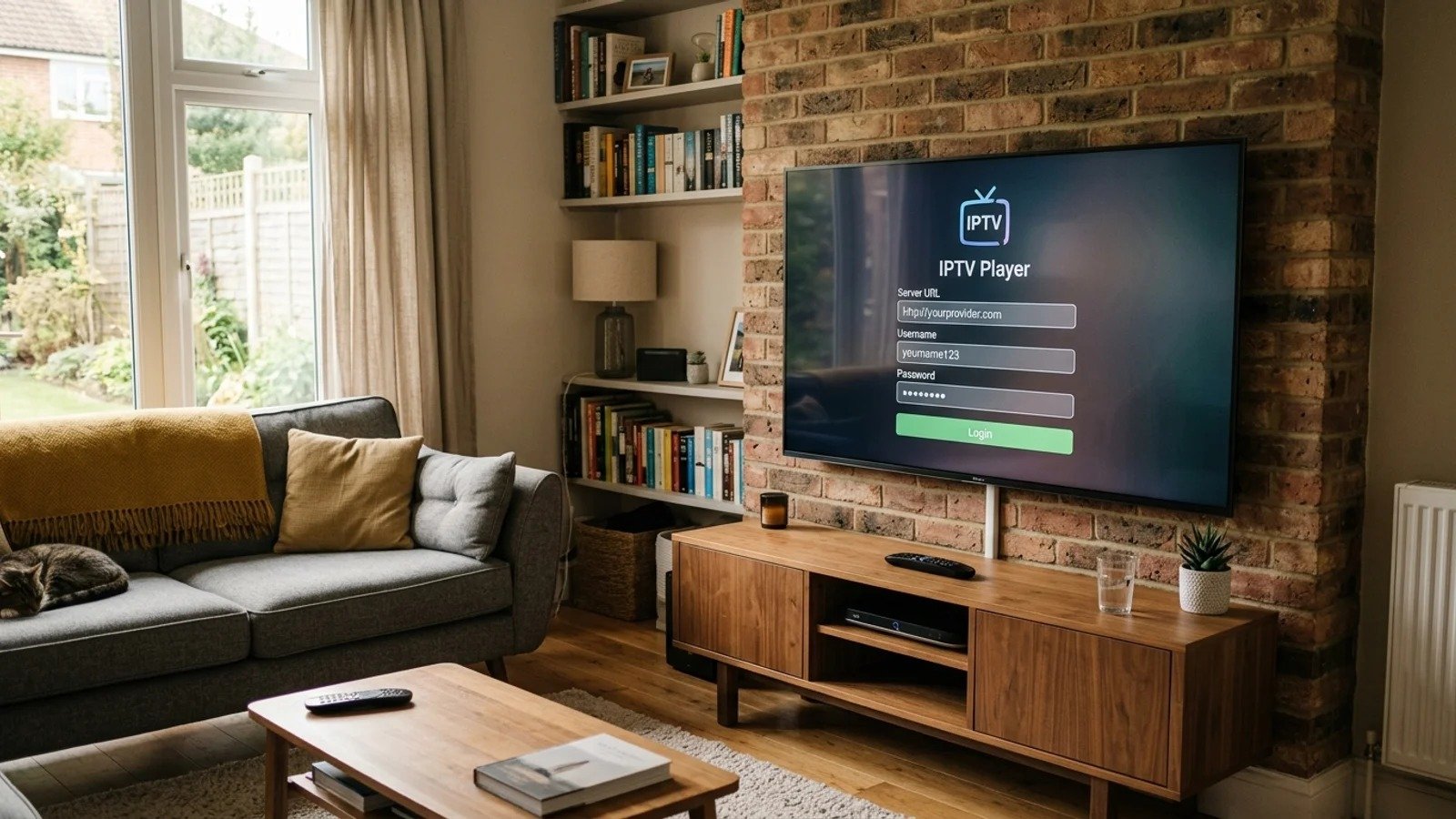
Adding Your Provider Details
After installation, you connect the app to your subscription. Your provider may give you:
- An M3U playlist link
- Xtream Codes login details
- A username and password
- A server address
Enter each detail with care. A small typo can stop the content from loading. If the details do not work, contact your provider.
B1G Player vs. an IPTV Subscription
Many new users mix up the app and the subscription. In fact, they are two different parts of the same setup.
The player gives you the screen to browse and play content. The provider manages the content and sends you the connection details.
| Component | Main Purpose |
| IPTV player | Provides the streaming screen |
| IPTV subscription | Gives access to content |
| M3U playlist | Holds the streaming links |
| Xtream Codes | Provides login-based connection details |
| Internet connection | Carries the video to your device |
As a result, B1G Player alone does not give you channels or movies. You also need an authorized content source.
What Is a B1G Reseller Panel?
A B1G reseller panel is a management tool for people in an IPTV reseller program. It does not play video. Instead, it helps manage accounts and subscriptions.
For example, a reseller may use one dashboard to view customers, check credits, and track renewals. Common tools may include:
- User management: Keep customer accounts organized.
- Subscription management: Check status and handle renewals.
- Credit management: Track available reseller credits.
- Pricing control: Set prices based on your business plan.
- Account activation: Manage supported activations.
- Support access: Find help when problems appear.
Before joining any program, review the terms, pricing, content licensing rules, and your support duties. To see the tools in detail, explore the B1G reseller Panel and its subscription and account features.
Keep in mind that a reseller panel does not replace the streaming app. Each one serves a different purpose.
Common B1G Player Problems and Easy Fixes
Like any app, B1G Player can have issues. Fortunately, a few quick checks solve most of them.
1. The App Will Not Open
Restart your device first. Then check for an app update. If your device allows it, clear the app cache.
2. Video Keeps Buffering
Buffering often comes from a weak connection, heavy network use, or a source problem. Try these steps:
- Restart your router.
- Test your internet speed.
- Close apps you do not need.
- Restart your streaming device.
- Contact your provider if the problem continues.
3. Login Details Do Not Work
Wrong details are a common cause. Therefore, check the username, password, server address, and playlist link. Also confirm that your subscription is active.
4. Channels Do Not Load
First, refresh the playlist or restart the app. If channels still do not appear, the problem may come from the provider. In that case, ask them to check your details and content access.
5. Update Problems
Older app versions may not work well with new operating systems. For this reason, check the official source for updates. Always confirm that a file is genuine before you install it.
Tips for Better IPTV Streaming
A few habits can improve your viewing experience:
- Use a stable connection: A strong signal reduces interruptions.
- Keep apps updated: Updates often fix bugs.
- Check device storage: Free space helps apps run well.
- Use compatible devices: Confirm the system requirements.
- Protect your login details: Do not share them with strangers.
- Choose authorized sources: Pick a provider that has the rights to share its content.
- Restart when needed: A quick restart can clear small glitches.
Also remember that higher video quality needs more bandwidth. So check your internet speed before you stream in HD or 4K.
Frequently Asked Questions
Is B1G Player free to download?
The app may be free to download from its supported sources. However, channels and other paid content usually need login details from a provider.
Does B1G Player work on Firestick?
The B1G IPTV website lists Firestick and Fire TV as supported devices. Still, check the app version and installation steps for your own device.
Can I use B1G Player on Android?
Yes. The service lists Android phones and Android TV as supported. The install method depends on your device and app version.
Do I need an IPTV subscription to use B1G Player?
You can install the app without a subscription. However, you need a compatible provider to watch channels and other paid content.
What is the difference between B1G Player and a B1G reseller panel?
B1G Player helps you browse and watch IPTV content. A B1G reseller panel helps resellers manage accounts, subscriptions, and credits.
Can I use an IPTV player on more than one device?
It depends on the app and your plan. Some services allow several devices, while others limit streams at the same time. Therefore, read your provider’s terms before you use one subscription on many devices.
Final Thoughts
B1G Player gives you one screen to browse live TV, movies, and series on supported devices. It helps you organize your content and move through it with ease.
However, the app and the subscription are not the same thing. The app handles the viewing screen, while the provider supplies the content and login details. In the same way, the B1G reseller panel helps resellers manage accounts, not watch video.
In short, choose a compatible device, use a stable connection, and pick an authorized content source. These steps help you make smarter streaming choices.


